> For the complete documentation index, see [llms.txt](https://docs.xenioo.com/llms.txt). Markdown versions of documentation pages are available by appending `.md` to page URLs; this page is available as [Markdown](https://docs.xenioo.com/basic-concepts/chatbot-details/master-and-child.md).
# Master and Child Bot
Any bot inside your account can be quickly cloned by using the supplied "Clone" button. Each bot clone is, by default, a full clone of the original bot and becomes completely detached from it. Any change you make to the original bot is not reflected on the cloned bots.

An optional [Xenioo package,](broken://pages/-LdYpe93z-UqrvvQdX7V) called "Clone Master" can enable an additional way of cloning bot named "reference clones".
## Reference Clones
A reference clone is a bot that remains attached in all content and features to its original source. As soon as you create a reference clone, the original bot will become the "Master Clone" bot and all of the clones will be considered children of the master.\
Visually, you'll notice a crown near any Master Bot you have in your account and a link symbol to each child bot. Hovering over the symbols will let you know how many children the master has or who is the master of a child.

### Working with a Master Bot
A master bot is a bot that has at least one reference clone. It can be modified and changed exactly like any other bot. You can build your flow, train AI or add broadcasts freely both before and after creating your reference clones. A Master bot can be online on any channel and carry on its own conversations like any other bot.
The only difference between a master bot and a standard bot is the ability to update all the reference clones with any update made at any given time. A master bot has an additional button just for that on the main design toolbar.

The Update and Publish button automatically updates all reference clones, propagating any changes made to the master bot.
### Working with a Child Bot
A child bot is a bot created from a Master Bot, as a reference clone. By default, each behaviour, intent, broadcast and audience will be locked: they cannot be changed as they are reference by the Master Bot and will be updated automatically.

You can change the status of each content by selecting the "Detach" button. If you detach a part of the bot from the Master Bot, it will not be automatically updated by the Master Bot and will become local to the child bot.
You could, for example, create a Child Bot that has just one detached behaviour, where you place all local bot configurations.
### Managing Master and Child Bots
Even if a bot was not originally created using the **Reference Clone** feature, it can still be attached to a master bot at any time.
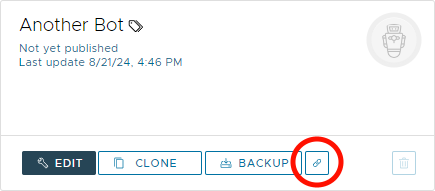
In the bots overview list, click the **chain icon** next to the standard action buttons for the bot you want to attach. This will open a dialog where you can select another bot from your account to act as its master. If the selected bot is not already a master bot, it will automatically be promoted to one.
Once confirmed, Xenioo scans the information in both the master and child bots and links them together as if the child bot had originally been created as a reference clone.
#### Managing Child Bots from a Master
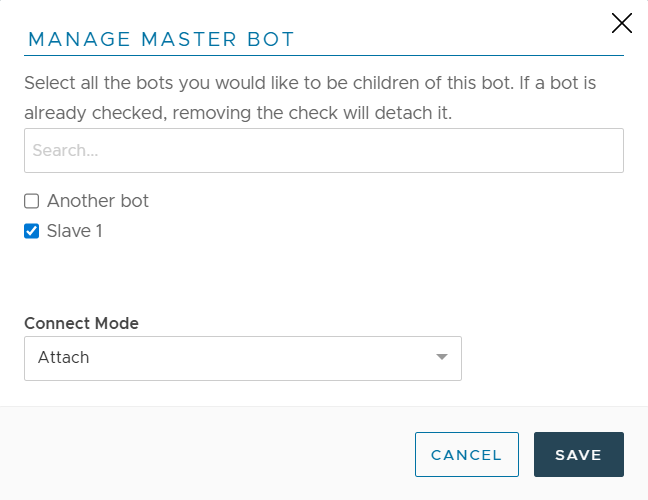
You can also manage all child bots attached to a master bot by clicking the same **chain icon** on the master bot itself. In this case, the dialog will display a full, searchable list of all bots in your account.
From this list, you can:
* Select bots to attach as children
* Unselect bots to detach them
* Apply your changes by clicking **Save**
All selected bots will become (or remain) children of the current master bot. Any unselected bots will be detached from the master reference, if applicable.
#### Managing Master Bot from a Child Bot
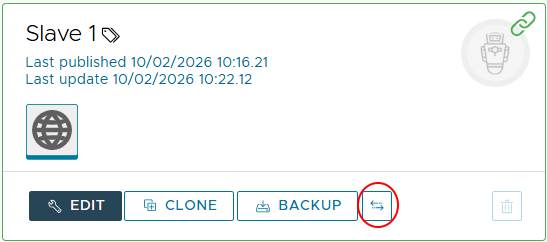
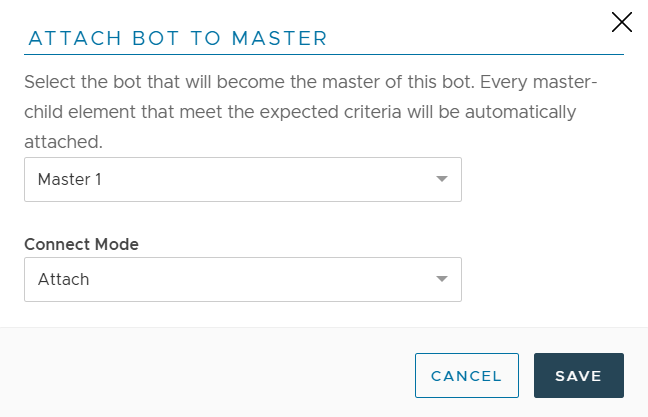
To change the master bot of a child bot, click the **arrows icon** next to the standard action buttons for the child bot. This opens a dialog where you can select a different master bot.
Once confirmed, the selected bot becomes the new master for the child bot.
### Connect Modes
When attaching a child bot to a master bot, you can choose how information is synchronized between them. There are three available connection modes:
#### 1. Attach (Default)
Attaches only information that already matches between the master and child bots.\
Any information that differs between them is left unchanged.
#### 2. Smart Overwrite
Overwrites matching information from the master bot, even if differences exist.\
Any behaviours, broadcasts, or other elements that are **not** present in the master bot are preserved in the child bot.
#### 3. Overwrite
Completely replaces the child bot with the master bot’s information.\
Any data, behaviours, or settings not present in the master bot are removed from the child bot.
### Master Bot And NLP Master
Master bots can use [NLP Master](/ai/nlp/nlp-master.md) intents. NLP Master intents will be inherited by child bots.