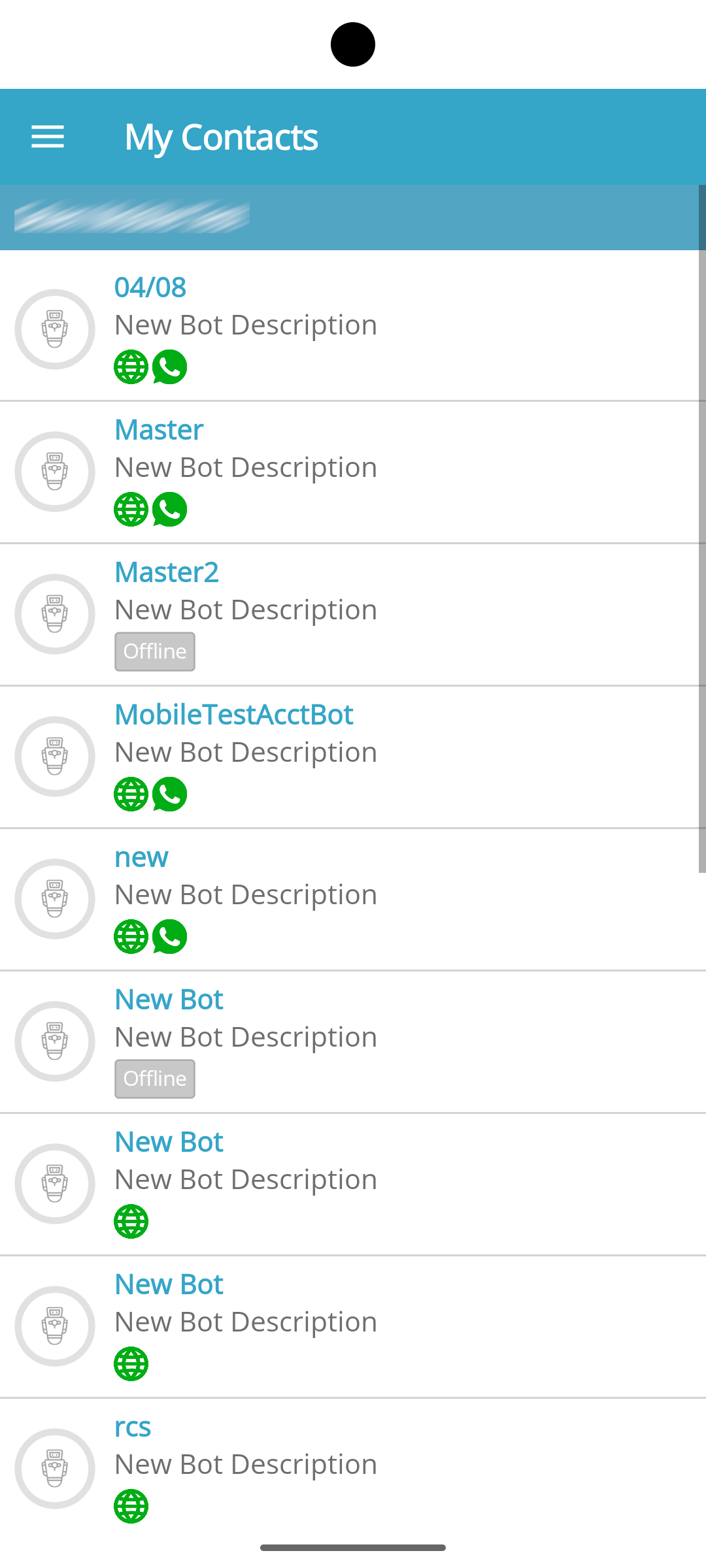
> For the complete documentation index, see [llms.txt](https://docs.xenioo.com/llms.txt). Markdown versions of documentation pages are available by appending `.md` to page URLs; this page is available as [Markdown](https://docs.xenioo.com/mobile-app/broadcast/my-contacts.md).
# My Contacts
{% hint style="info" %}
Choose the bot you want to operate to view and manage its specific set of contacts.
{% endhint %}
#### Viewing Available Bots
This page displays all the bots associated with you, including:
* **Bots Owned by Your Account**
* **Bots Where You Are an Invited Operator**
**Action:** Select a bot from the list to proceed. You will be directed to a page with all active contacts for that bot.
#### Contact Overview and Quick Actions
Upon selecting a contact, an expanded view will display a brief overview and provide options for immediate actions.
| **Element** | **Description** | **Action/Navigation** |
| ---------------------- | --------------------------------------------------------------------------------------- | ------------------------------------------------------------------------------------------------------------ |
| Contact Details | Shows basic contact information. | |
| Communication Channels | Displays the first three available communication channels (e.g., SMS, WhatsApp, Email). | Clicking a channel icon takes you to the Broadcast Widget page with the contact's details already filled in. |
| Details Icon | A dedicated icon (often a small 'i' or magnifying glass). | Click this icon to go to the detailed Contact page. |
#### Contact Detail Page
Access the Contact Detail page for a comprehensive view of customer information and conversation history.
Select a communication channel, like a phone number or email address, and you'll be taken to the Broadcast Widget page. There, the contact's details are pre-filled, ready for messaging.
When you click the communication channel on the detail page, it redirects you to the broadcast widget page with contact information pre-filled.