> For the complete documentation index, see [llms.txt](https://docs.xenioo.com/llms.txt). Markdown versions of documentation pages are available by appending `.md` to page URLs; this page is available as [Markdown](https://docs.xenioo.com/mobile-app/conversation/chatting-and-messaging.md).
# Chatting and Messaging
**Chat View**
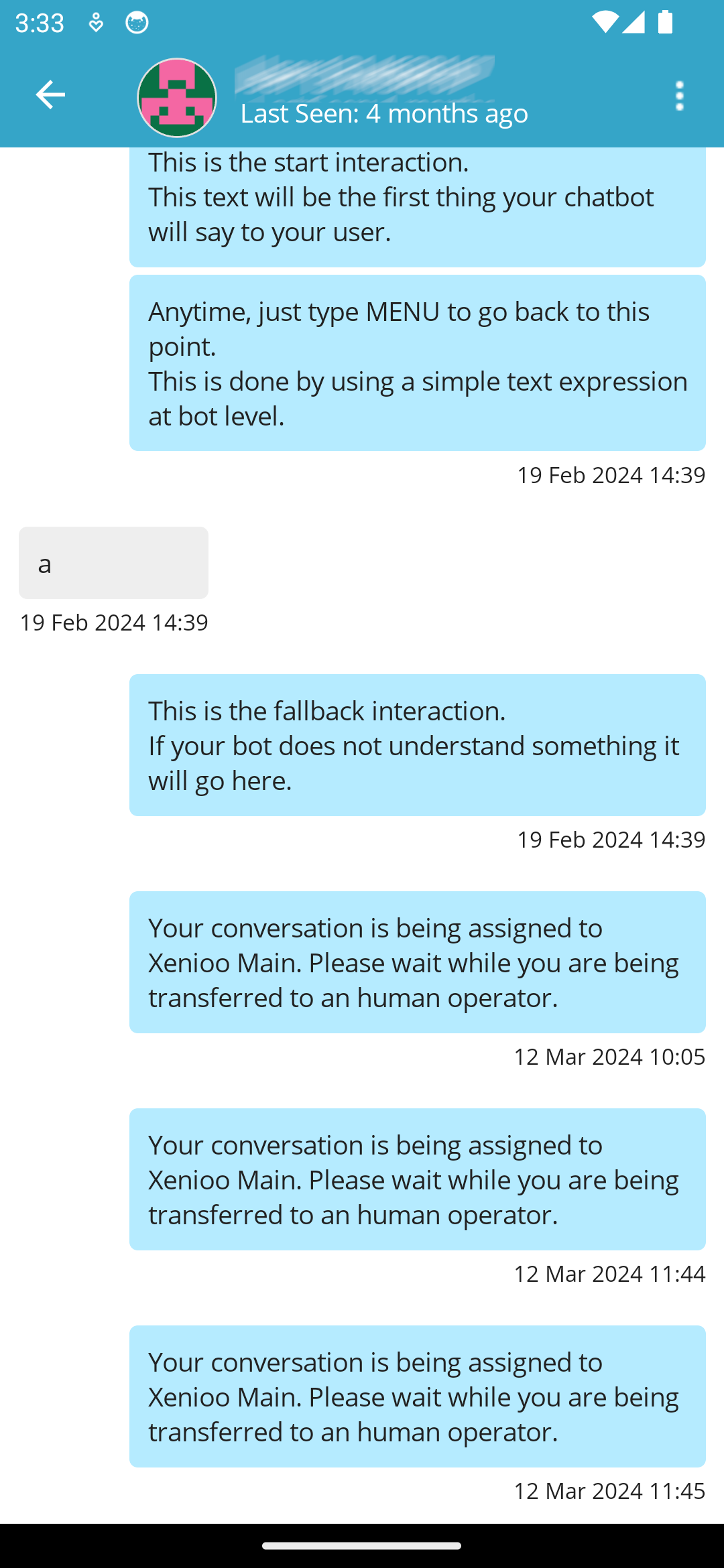
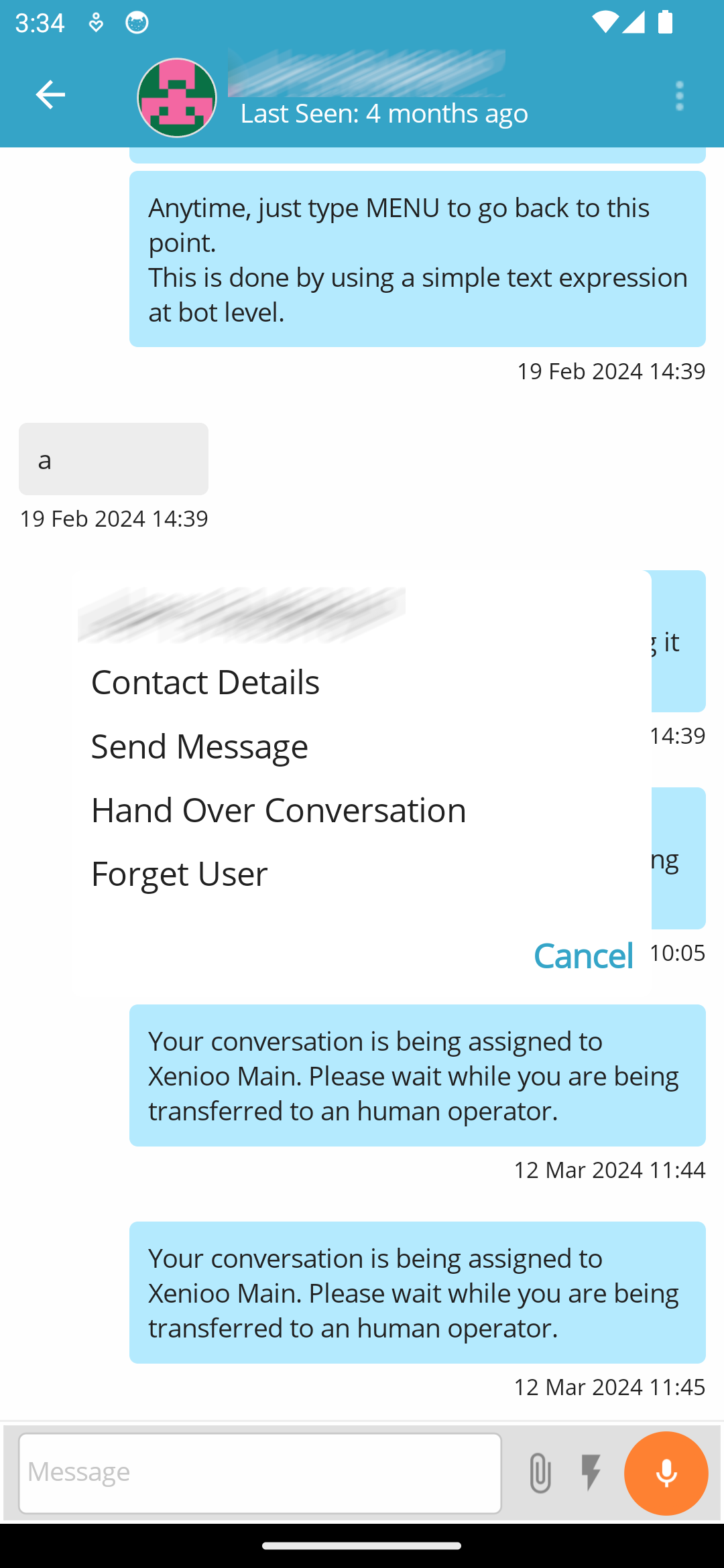
Accessing any conversation within the mobile app brings you to the Chat View, the interface for real-time interactions with users.
**Conversation History**
This section shows the full exchange history between the user and either the bot or you, the operator.
**Sending Messages**
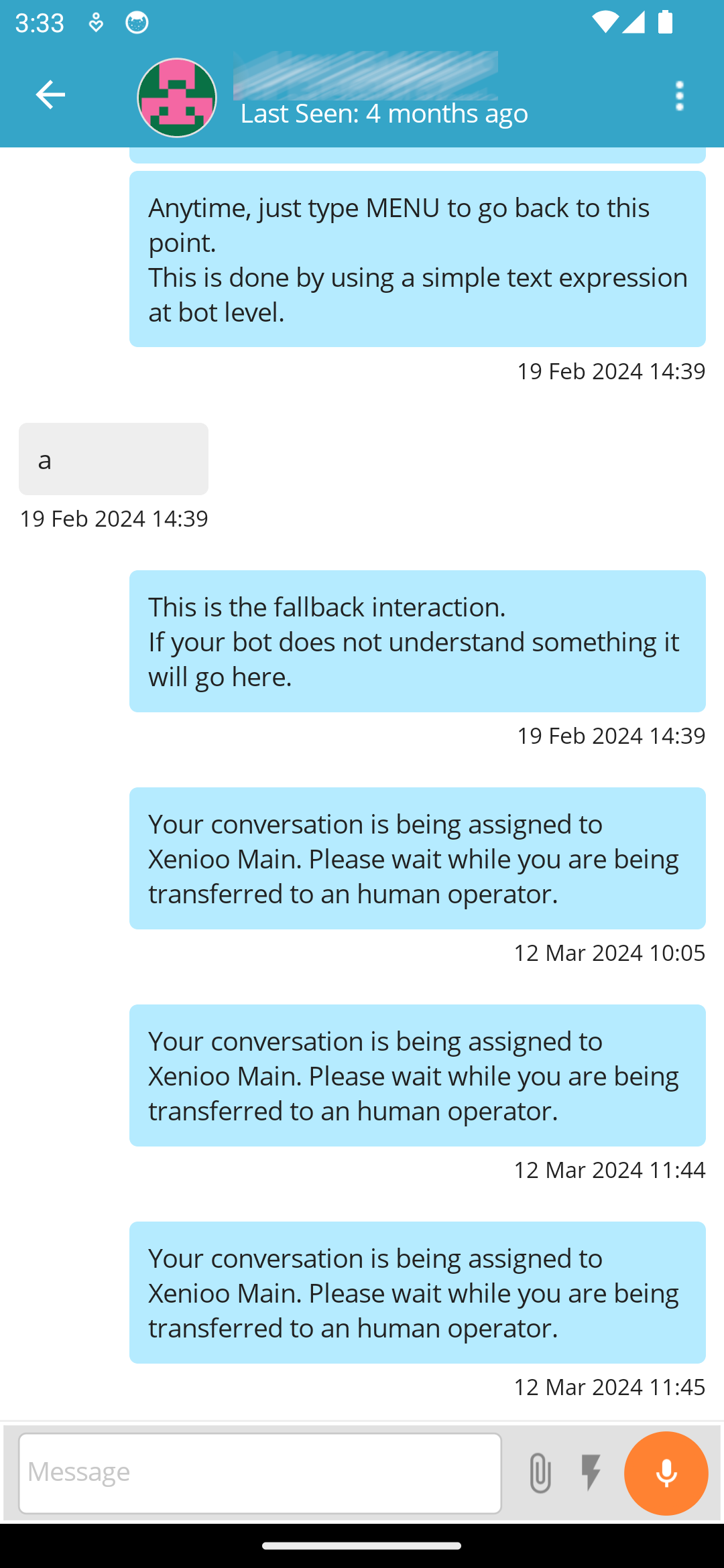
When the conversation is assigned to you, you gain full access to the chat section, allowing you to send direct text messages.
#### Attachment and Audio Tools
Enhance your messages using these icons:
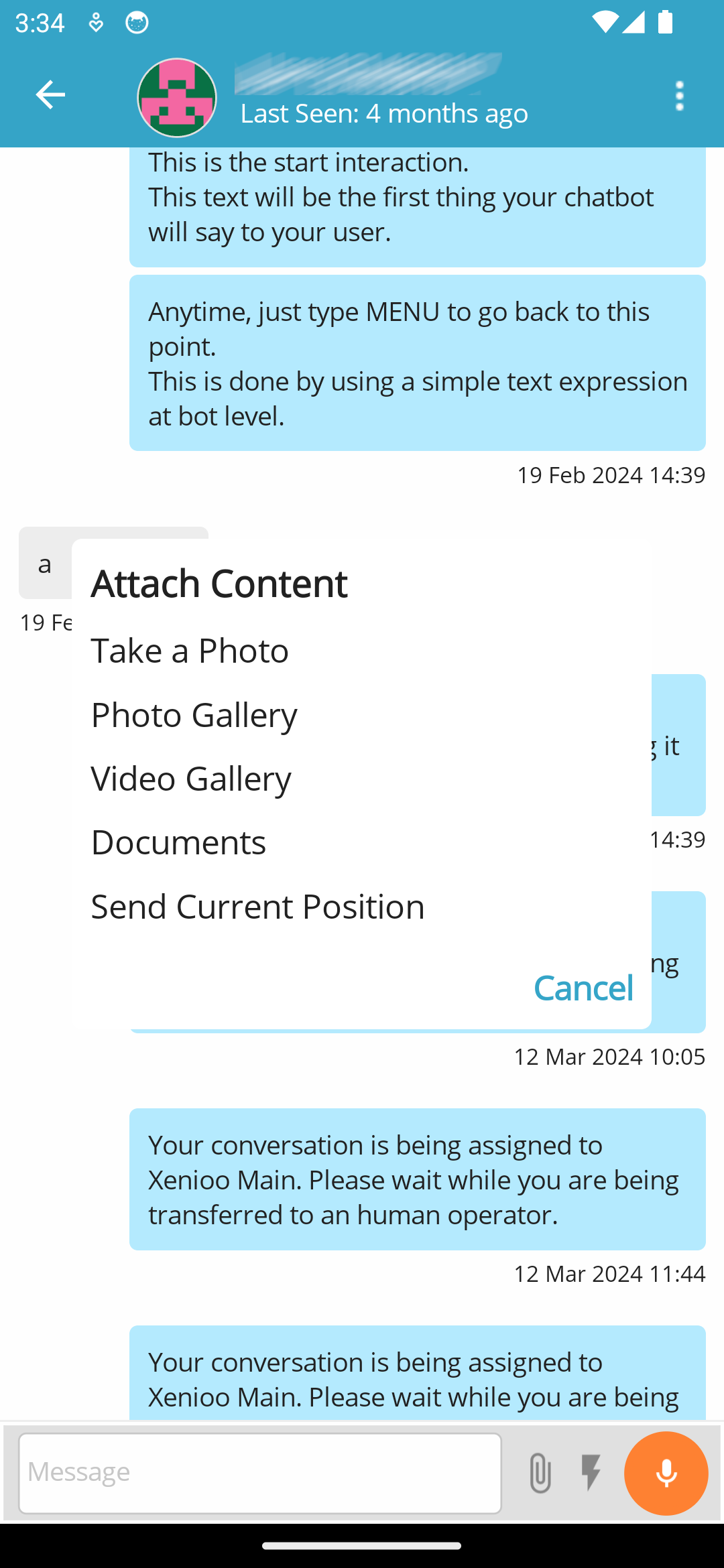
* **Clip Icon**: Upload and send attachments, such as:
* Images and videos
* Documents
* Your current location
Attachments can be selected from local storage or captured directly.
* **Microphone Icon:** Tap to record an audio message directly from your phone and send it instantly to the user.
#### Quick Response Templates
If your bot includes Team Message Templates configured for operators, you can easily use them:
* **Flash Icon:** Tap this icon in the chat menu to access your pre-configured response templates. It functions similarly to the desktop version.
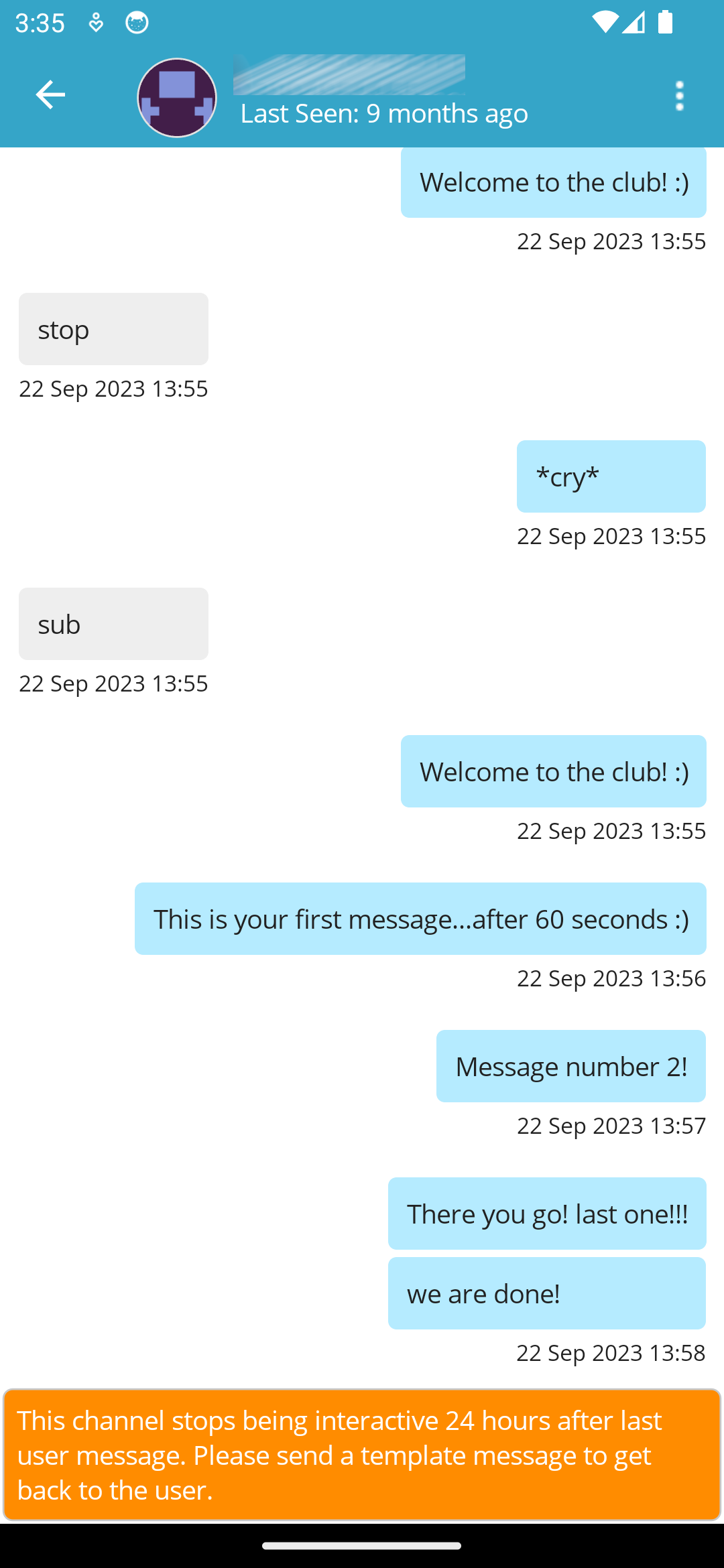
#### **Chat Constraints and Validity Windows**
The ability to send free-form messages may be restricted by certain platforms that enforce a validity window. For instance, in a WhatsApp conversation, the platform usually limits free-form chat to within 24 hours of the user's last message, allowing only template messages after this period.
#### Context Menu and Actions
Access the context menu (typically represented by three dots or a menu icon) in the top-right corner of the Chat View to utilize additional functions:
* **Control Chat State**: Manage the current conversation status, such as reassigning the chat.
* **View Contact Details**: Display user's details based on the desktop conversation view configuration.
* **Conversation Language**: Change the language settings for conversation translation. Refer to the Conversation Translation page for more details.
* **Send Message**: Broadcast a message to the current chat.