> For the complete documentation index, see [llms.txt](https://docs.xenioo.com/llms.txt). Markdown versions of documentation pages are available by appending `.md` to page URLs; this page is available as [Markdown](https://docs.xenioo.com/mobile-app/login/mfa-login.md).
# MFA Login
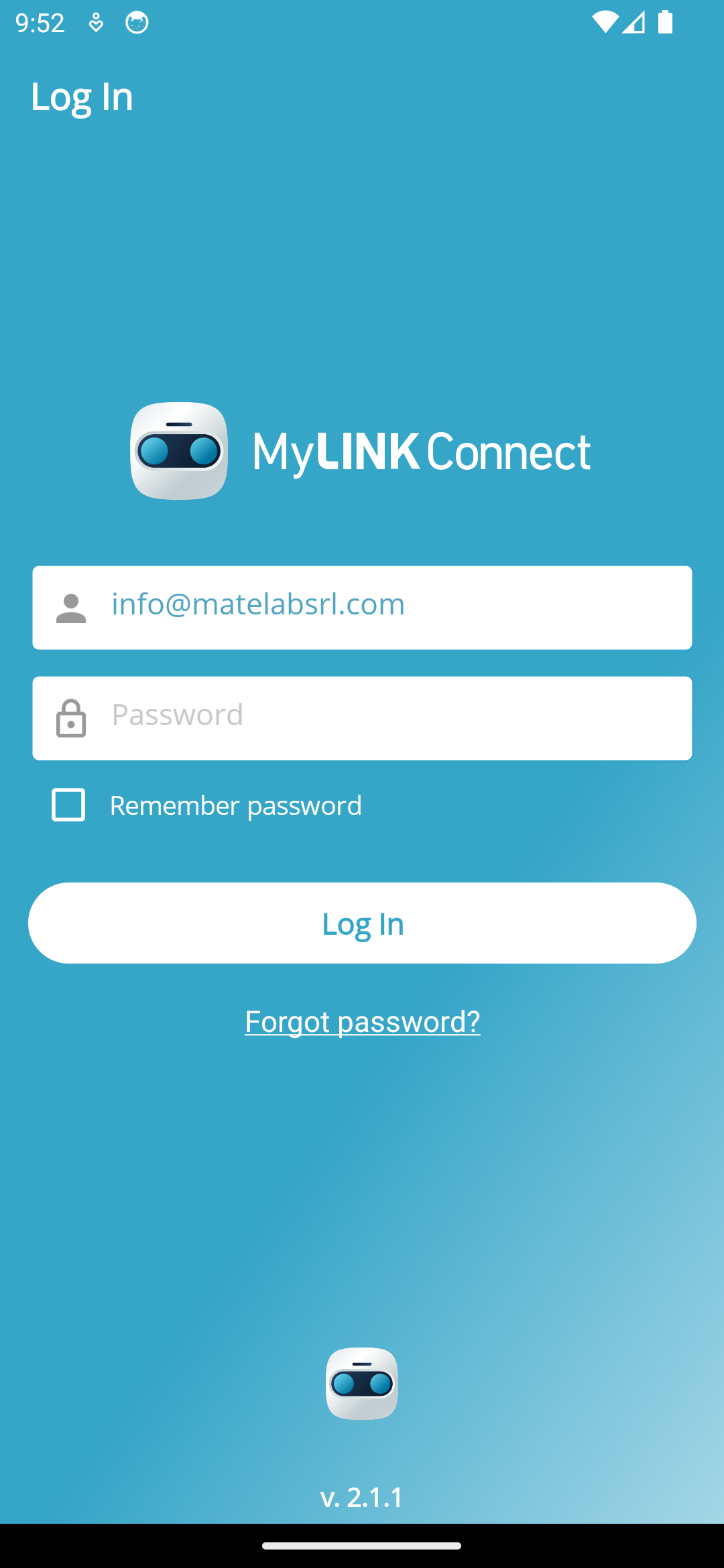
To log in, enter your **username** and **password**. If **Multi-Factor Authentication (MFA)** is enabled, you'll need to complete an extra verification step. Your organization can set up the following MFA types:
* **Email**
* **SMS**
* **App** (e.g., Google Authenticator)
For updates, visit the MFA Configuration page.
### **How MFA Works**
1. Log in using your credentials as you normally do.
2. When MFA is enabled, the app prompts you to select your preferred method to receive a **One-Time Password (OTP)**. \
You can choose from the available options configured for your account, such as **Email** or **SMS**. \
The app will then send the OTP through your chosen method.
{% hint style="info" %}
**When only one MFA method is set up**, the app automatically uses that method, bypassing the selection screen.
{% endhint %}
### **Completing the MFA Step**
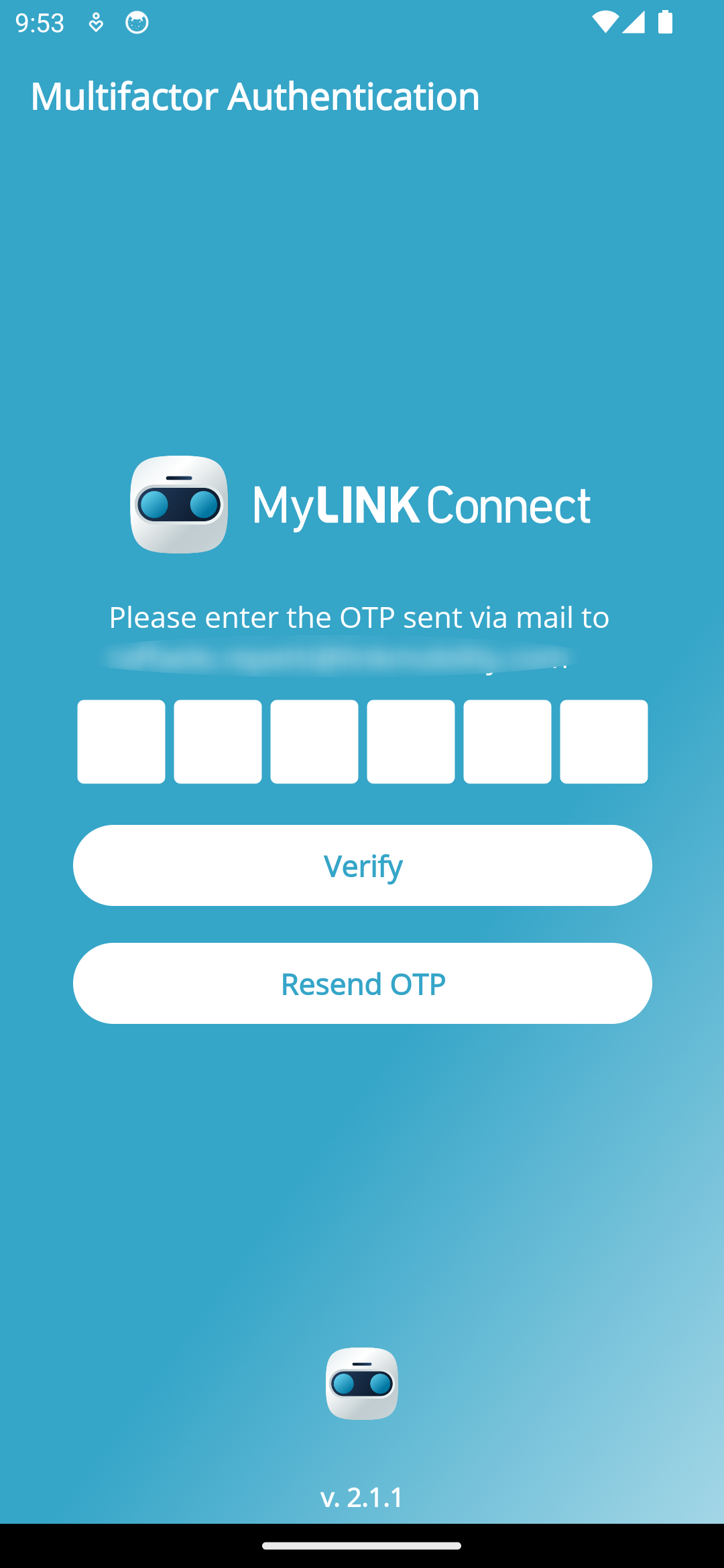
1. Please check your email, text message, or authenticator app (e.g., Google Authenticator) for the OTP code.
2. **Insert the OTP** in the designated field on the screen.
3. Tap **Verify** to proceed.\
The app will validate the code with the server.
{% hint style="warning" %}
The **Resend OTP** button is available for both **Email** and **SMS** modes. For the **App** mode, the OTP refreshes automatically within your authenticator app, so no resend option is provided.
{% endhint %}
Once your OTP is verified, you'll be directed to the **My Conversations** page, ready to begin.